
Help Center
How can we help you?


General Help Topics
🛍️ Step 1: Create Placeholder Product - Set personalization
Publish a generic version (e.g., "Custom T-Shirt") to your store
Use placeholder images/text like "Your Design Here"
Tip: Add clear instructions about customization options in the description ✏️

⚠️ ⚠️ ⚠️ ⚠️
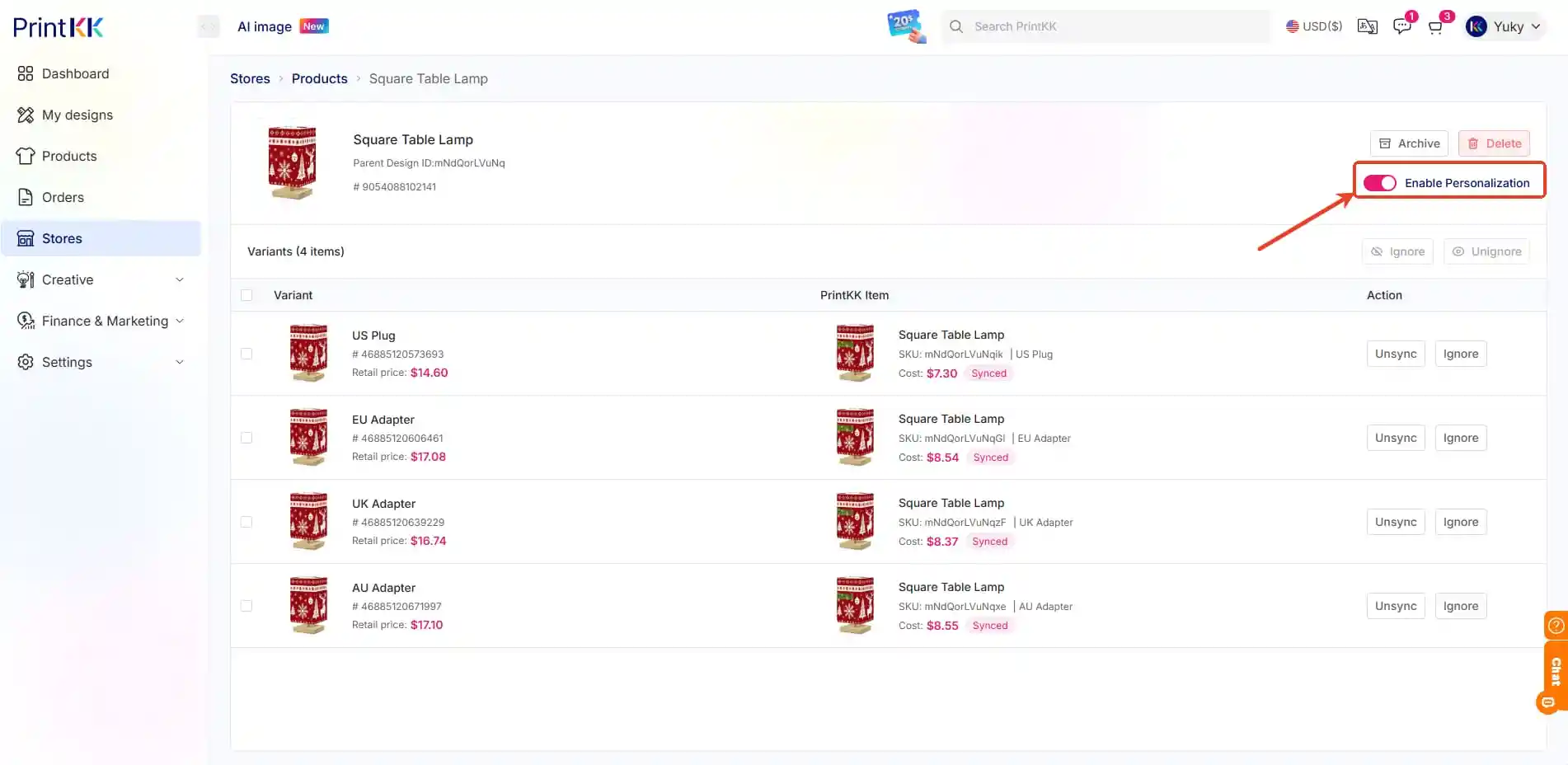
Can you modify the personalization status of a published product? Of course! Find the corresponding product and adjust it by turning the switch on or off.
After the product is published, the personalization settings you configure on PrintKK only apply to this platform and will not affect your external stores such as Shopify or Etsy. 
📤 Step 2: Collect Customer Designs
Option A: Marketplace Sellers (Etsy/eBay)
Customers message designs after purchase ✉️
Include note: "Send your design within 24 hours"
Option B: Shopify Stores
Use Personalized Image Uploader
Allows pre-order uploads 📤 → No chasing customers!
Option C: Email Collection
Auto-responder: "Reply with your design attachment"
Organize with labels like "Pending Customization" 🏷️
🎨 Step 3: Update Order
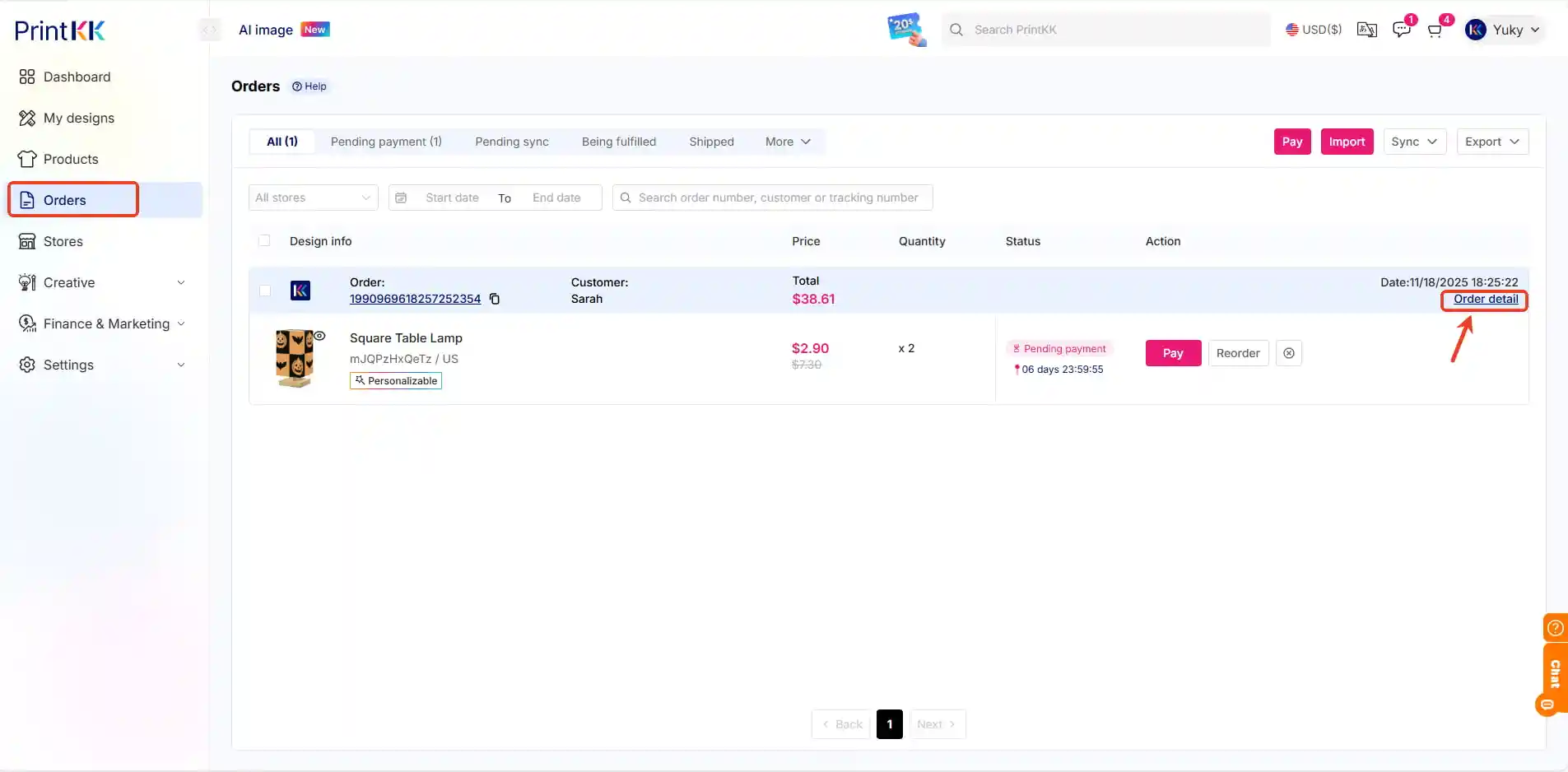
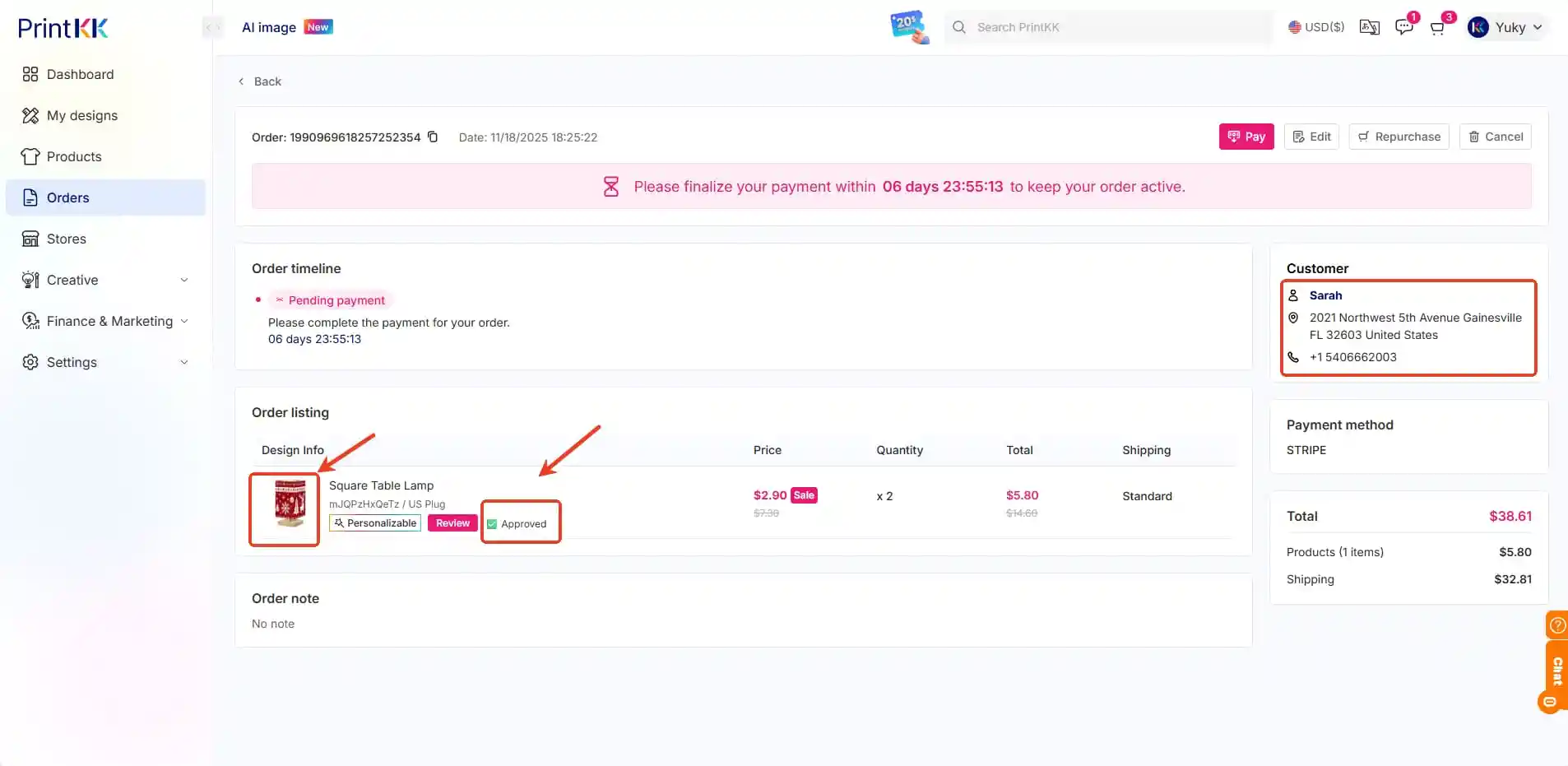
Navigate to "Orders" → "Pending"
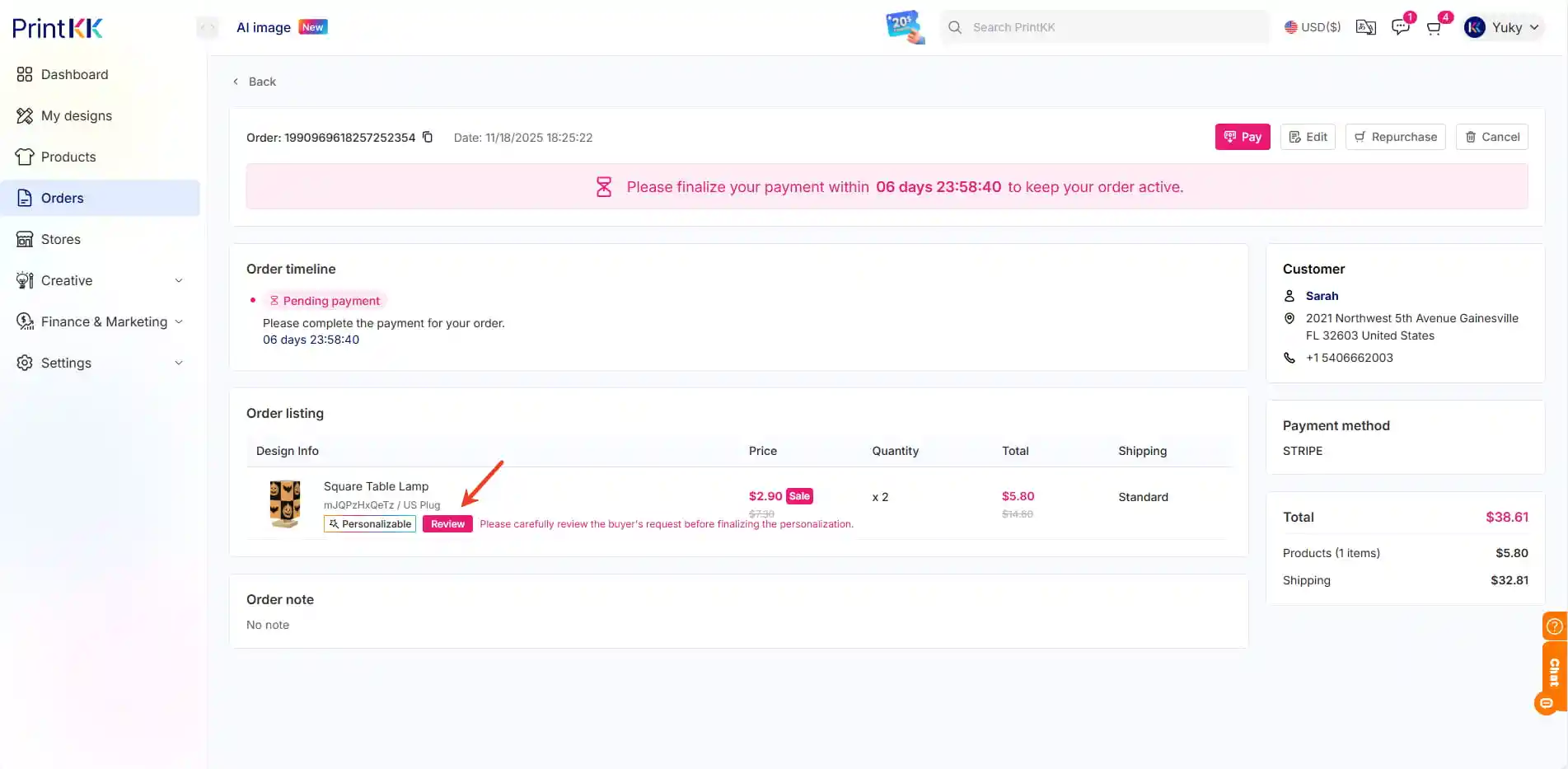
Click "View Details" → "Review"
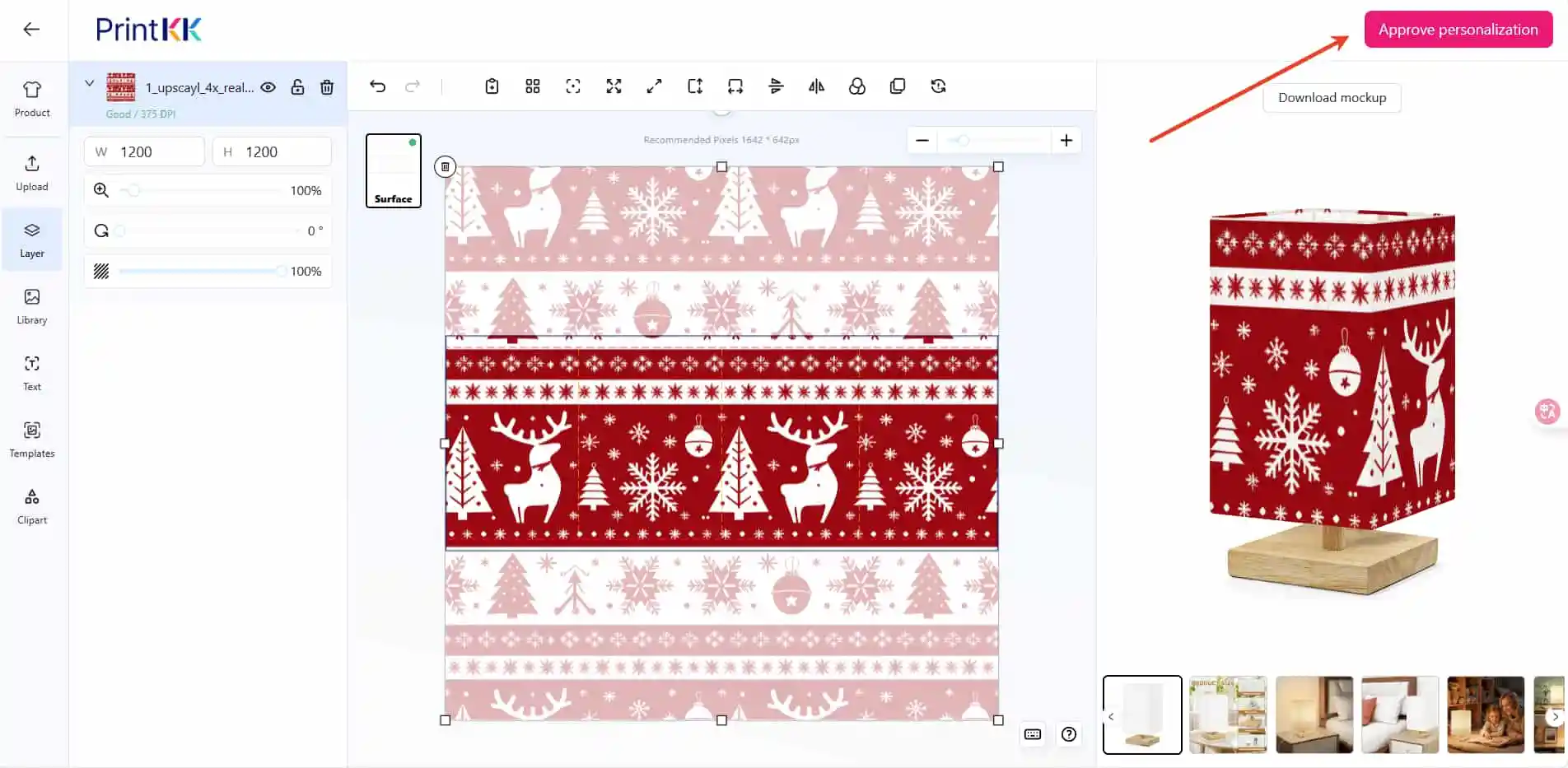
Replace placeholder with custom product
Verify:
Correct design ✅
Shipping address 📦
Special instructions 📝
🔄 Step 5: Finalize Production
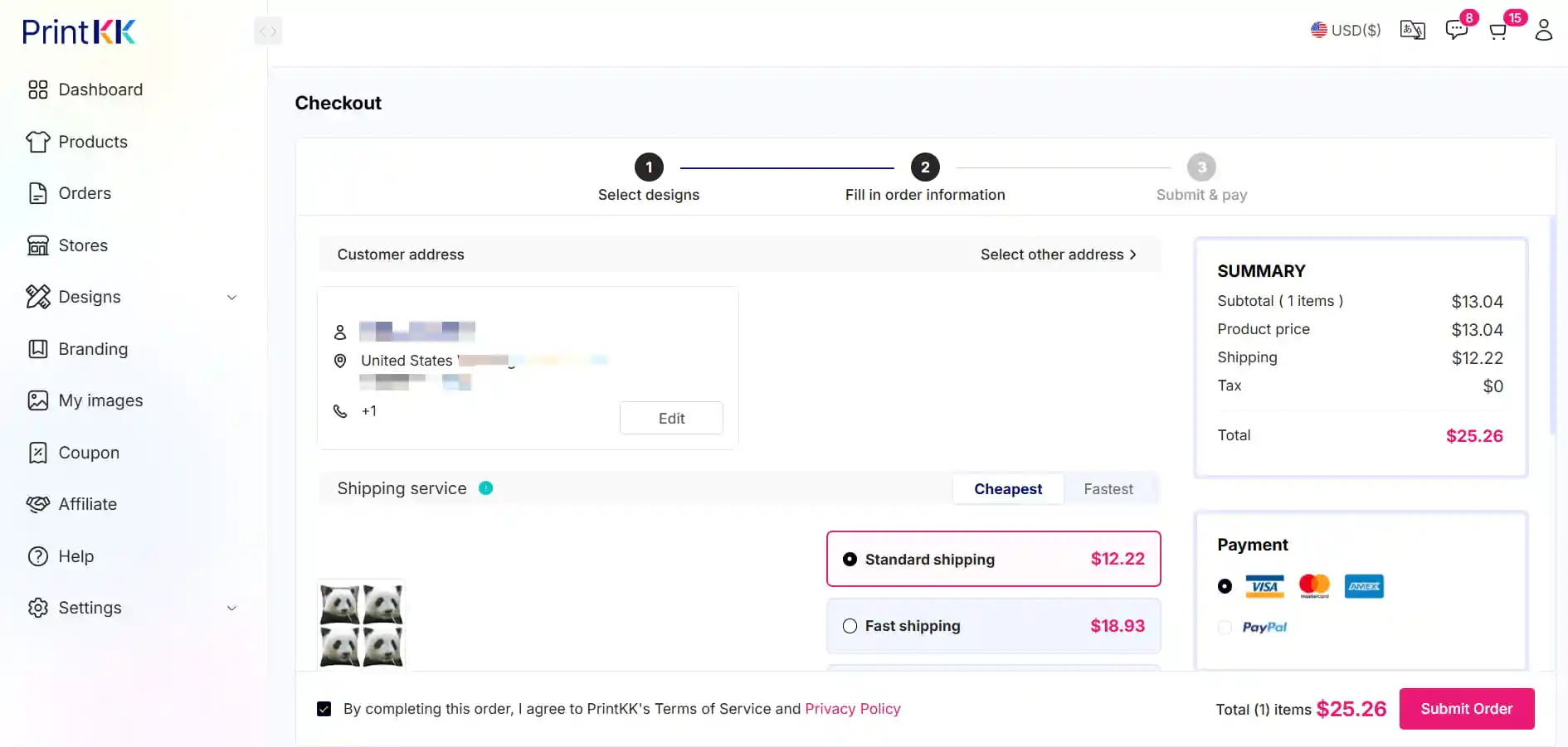
Complete checkout to start manufacturing
Customer receives automated production updates 📩
Note: Production timer begins only after this step ⏳